Create Your First Agent Project
Make one product image from a text brief, review the generation settings, and download the result from your Canvas.
Create a simple studio image of a ceramic cup. This short exercise introduces the same brief, node, confirmation, and review steps you will use in a larger video project. You do not need a reference file.
1. Start a Canvas
Open Home and select New Canvas. You can also send your first brief from the homepage's Veo3 AI Agent input.
Although the input suggests describing a video, you can ask Agent to create an image.
2. Send a specific brief
Paste this into the chat:
Create one 1:1 studio product image of an unbranded matte cream
ceramic coffee cup on a pale sage-green background.
Soft morning window light, gentle shadow, realistic commercial
product photography. No hands, people, text, or logos.
Use GPT Image 2 at 1K if available.
Create the image node and show the generation cost;
wait for me to confirm. Reply in English.
Select Send. Agent creates a named project and prepares an image node. The node contains the generation request; it is not yet a finished image.
3. Check the node and confirm
Select the image node on the Canvas, or select its linked title in the Agent's response. Review the prompt, Model, and Generation settings. For this example, check that the request is for one square image at 1K.
Open Generations above the chat input. Review the waiting task and select Confirm to submit it. The selected node also has a Generate control with a displayed credit cost.
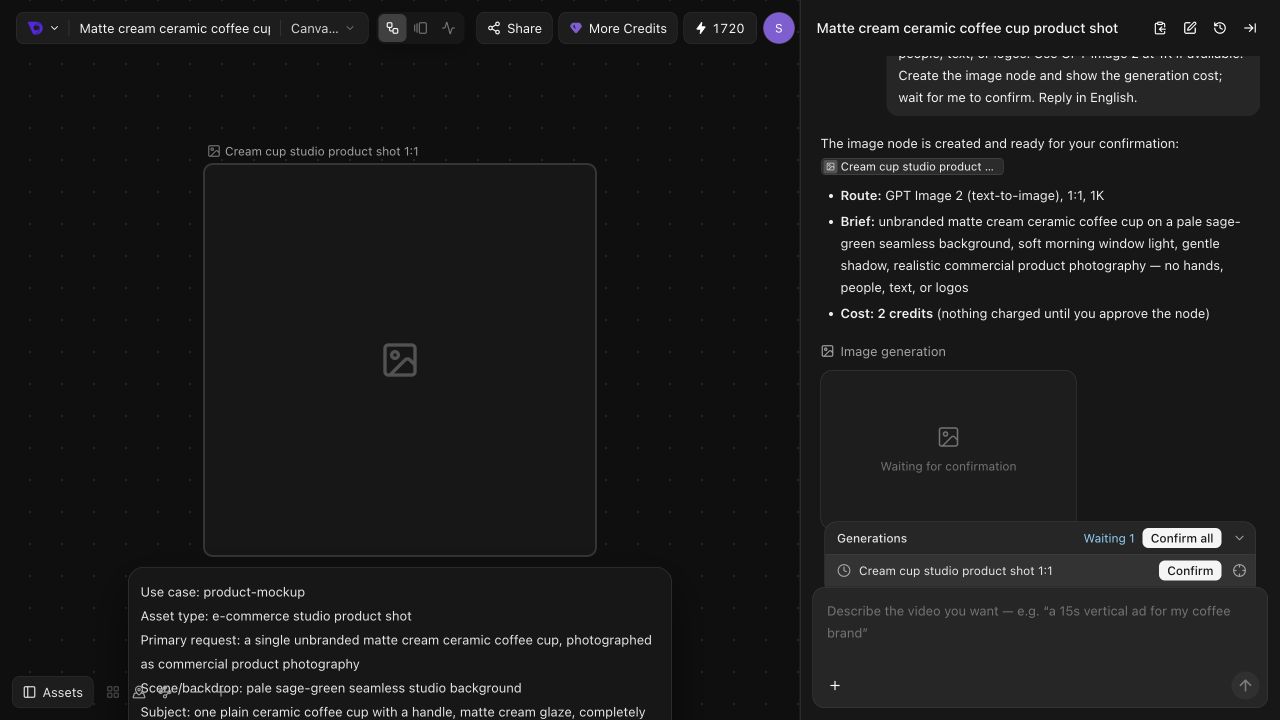
The screenshot records a quote for one particular setup. Always use the current displayed cost: models, resolution, and output count can change it. See Credits and Subscriptions.
4. Review the image
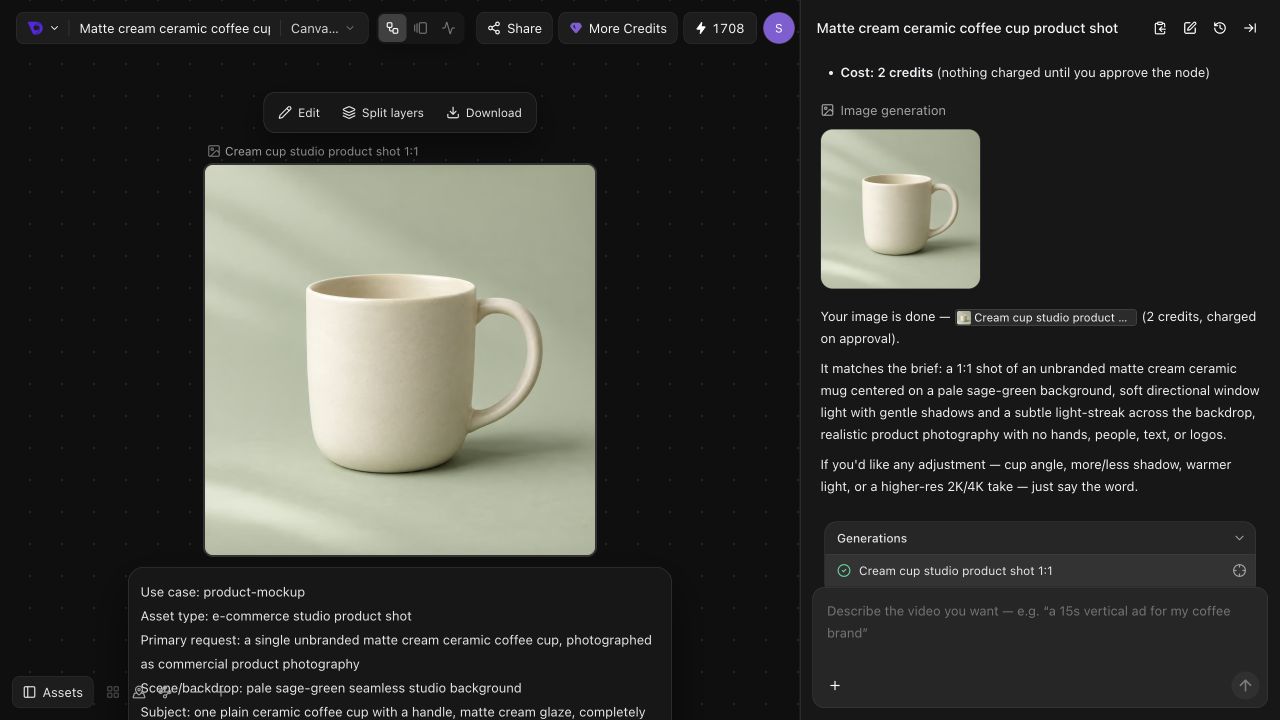
The node shows its progress while the task runs. When the image appears, inspect it on the Canvas or in Assets → Images.
For this brief, check:
- There is one cup with a believable handle and rim.
- Its material is matte cream ceramic.
- The background is pale sage green, with soft directional light.
- There are no hands, logos, or unwanted text.
5. Download or continue
Open the image preview and use its Download control to save the result.
To make a revision, identify the image in chat using @, select its node, and describe the change:
Keep the cup, its shape, framing, and lighting unchanged.
Make the background a soft warm beige.
Create a separate image version so I can compare it with the original.
Show the new generation settings and cost before running it.
A new generated version uses credits. Keeping the original gives you a useful comparison when deciding whether the change helped.
Continue with Refine and Reuse Your Results, or try the longer Product Video Workflow.