Quick Start
Learn the Veo3 AI homepage, New Canvas, five generation tools, Agent prompt area, recent projects, and creation history.
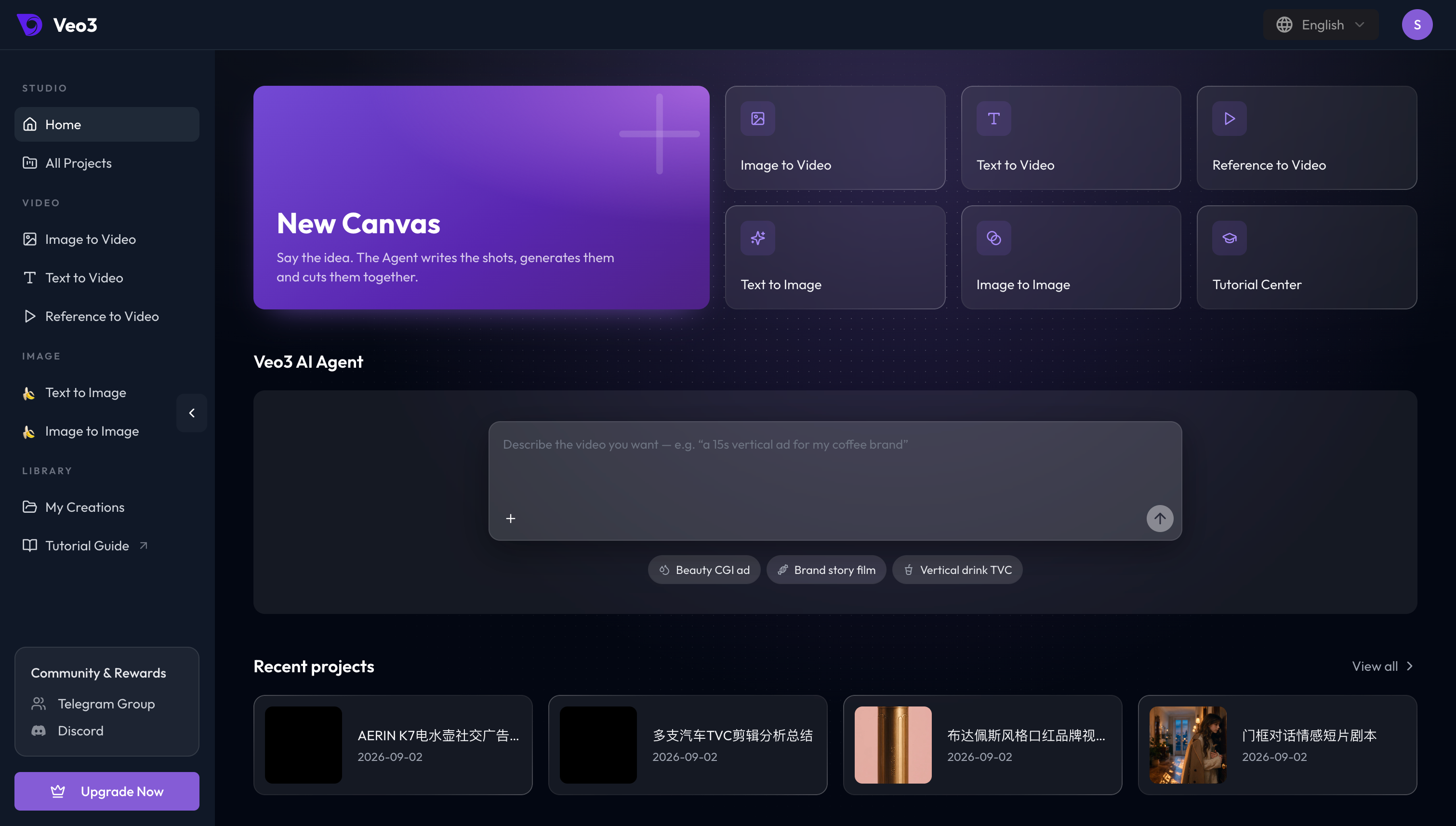
The Veo3 AI homepage brings new projects, five generation tools, the Agent prompt box, and recent projects together. Learn these areas and you are ready to create.
What is on the homepage
Veo3 Agent
Complete goal · Multi-step collaboration
Best for projects with several stages, version comparisons, and ongoing revisions. Describe the goal first and Agent helps organize the next steps.
5 generation tools
3 video tools · 2 image tools
Matches the tool cards on the homepage, so you can go straight to the current video or image task.
How to choose: Use Veo3 Agent when you have a creative goal that needs planning, several steps, and ongoing revisions. If the input, generation method, and desired result are already clear, open the matching tool directly.
Follow the Agent Guide to write your first brief, use references, and work through a project in Canvas.
| Homepage area | Purpose |
|---|---|
| New Canvas | Start an Agent project and organize shots and assets from an idea |
| Five generation tools | Open Image to Video, Text to Video, Reference to Video, Text to Image, or Image to Image |
| Tutorial Center | Read model prompting guides and creative techniques |
| Veo3 AI Agent | Describe an idea, attach references, or use an example task |
| Recent projects | Continue recent work or select View all to see every project |
New Canvas
Select the purple New Canvas card to create an Agent canvas. Inside the project, rename it, explain the goal in chat, and review workflow nodes and generated assets.
Start with one complete objective, for example:
Create a 15-second vertical product film for a portable espresso maker.
Use realistic commercial cinematography and warm morning light.
Show its compact size, fast extraction and rich crema. No dialogue or subtitles.
Plan the shots first and wait for confirmation before generation.
Five generation tools
The homepage places three video tools on the first row and two image tools on the second:
| Order | Tool | Best for |
|---|---|---|
| 1 | Image to Video | Animate one starting frame or a pair of start and end frames |
| 2 | Text to Video | Generate a video from a prompt only |
| 3 | Reference to Video | Use several character, product, scene, or style images to guide one video |
| 4 | Text to Image | Create characters, scenes, product images, or storyboards from text |
| 5 | Image to Image | Preserve selected parts of an image while changing the picture |
Video tools show model-specific settings such as aspect ratio, duration, resolution, and sound. Image tools show aspect ratio and resolution, plus transparent-background output when supported.
Text to Image and Image to Image also offer Multi-shot generation (Beta). Generate 6, 9, or 12 related images at once for storyboards, multiple compositions of one subject, or a connected sequence.
Create nine connected storyboard frames for a premium travel kettle campaign.
Keep the same matte silver kettle, walnut handle and coastal cabin in every frame.
Cover the establishing shot, product setup, water pour, power-on detail, steam close-up,
cup fill, hand-held use, packed travel bag and final hero shot. No captions.
Tutorial Center
Select Tutorial Center in the lower-right of the homepage tool area to open model prompting guides, the prompt bank, creative techniques, and FAQ.
Veo3 AI Agent prompt area
Write your creative brief in the central prompt box to start an Agent task. Select + to upload image, video, or audio references. The example buttons below the box can fill in common creative directions.
Before sending, state:
- what you want to make and where it will be published;
- the target duration and aspect ratio;
- the subject, scene, and visual style;
- anything that must remain or must not appear.
Recent projects
Select a project card to return to its Canvas and continue with the nodes, assets, and Agent chat. Select View all for the complete project list.
Left navigation
| Section | Includes |
|---|---|
| Studio | Home, All Projects |
| Video | Image to Video, Text to Video, Reference to Video |
| Image | Text to Image, Image to Image |
| Library | My Creations, Tutorial Guide |
My Creations keeps generated videos, images, and task history together. Search previous prompts, download assets, or continue editing and regenerating an earlier result.
Complete your first creation
- Choose an entry point: start an Agent canvas or open one of the five tools.
- Prepare the input: write a prompt and attach references when needed.
- Set generation options: choose the model, aspect ratio, duration, and resolution, then check the displayed credit cost.
- Review the result: verify the subject, action, camera, text, and sound before downloading or revising it.
Available settings differ by model. Always follow the options, durations, and credit cost currently shown on the generation page.