Work in Canvas
Find connected shots, inspect generation settings, browse project assets, and keep your Agent conversation focused on the right node.
Canvas brings the project's visual workflow, assets, and Agent conversation together. Use the workflow to understand how a shot is set up, then inspect its settings before generating or revising it.
Find your way around
At the top of the workspace, select the project title to rename it. Use the Canvas selector to choose the Canvas you want to inspect.
The Workflow and Assets controls let you show the connected workflow and browse the project's content. The Agent chat sits beside this workspace. Use Chat history to view the project's conversations.
On the Canvas, you can:
- Drag an empty area to pan around the workspace.
- Use Zoom in and Zoom out to change the view.
- Use the minimap to see where you are in a larger workflow.
- Select Tidy up to arrange the nodes more clearly.
Follow a shot's inputs
In Workflow, each node represents a piece of the project. Connections show how inputs feed into later steps. For example, one product reference can connect to two separate video shots.
Follow the connection back from the shot to check its reference. If the Agent's message includes a node title, select that title to locate the node on the Canvas.
A prepared video node is a generation setup. Inspect its status and output to see whether it has actually produced a video.
Inspect a node before generation
Select a shot node to open its settings.
| Check | What to review |
|---|---|
| Prompt | Subject, action, camera movement, setting, and details to preserve. |
| Model | The model selected for this generation. |
| Generation settings | Available aspect ratio, resolution, duration, and audio options. These vary by model. |
| Price and Generate | The displayed cost and the action that starts generation. |
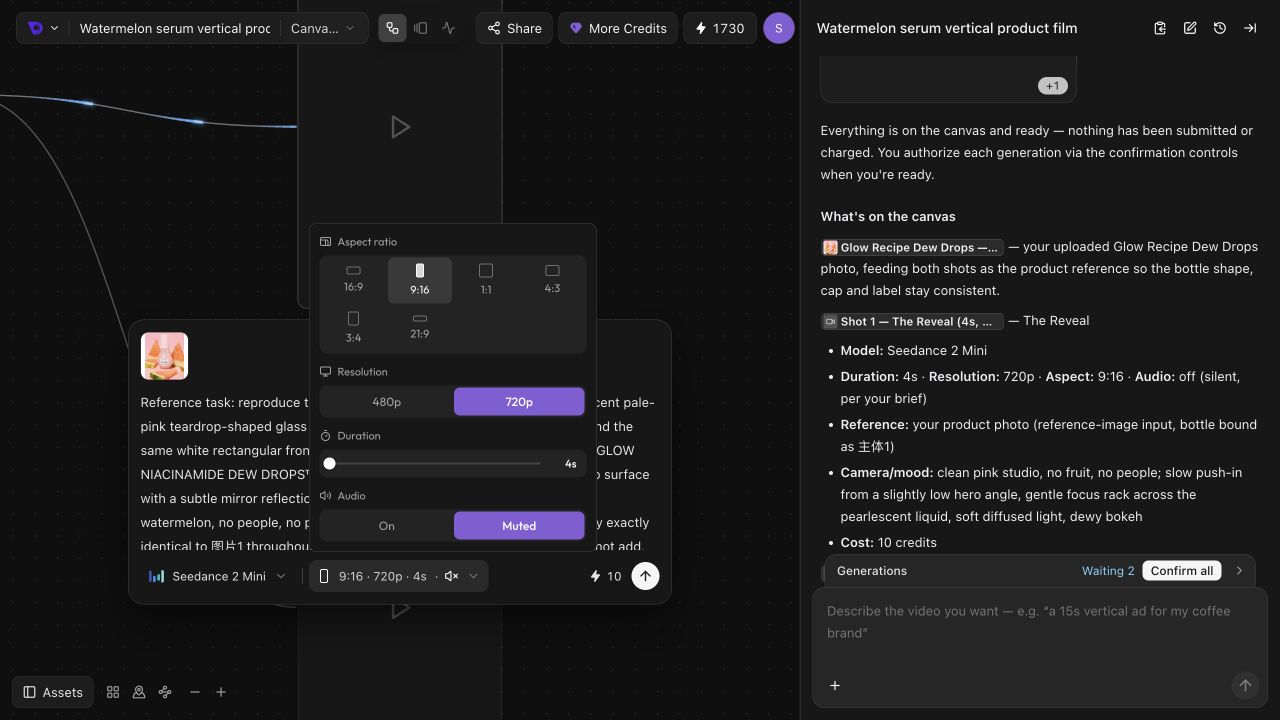
Compare these settings with your brief. If a shot is wrong, tell the Agent which node to change and what should remain. For billing details, see Credits and Subscriptions.
Browse assets and bring one into chat
Use Assets to find content under Audio, Text, Images, and Videos.
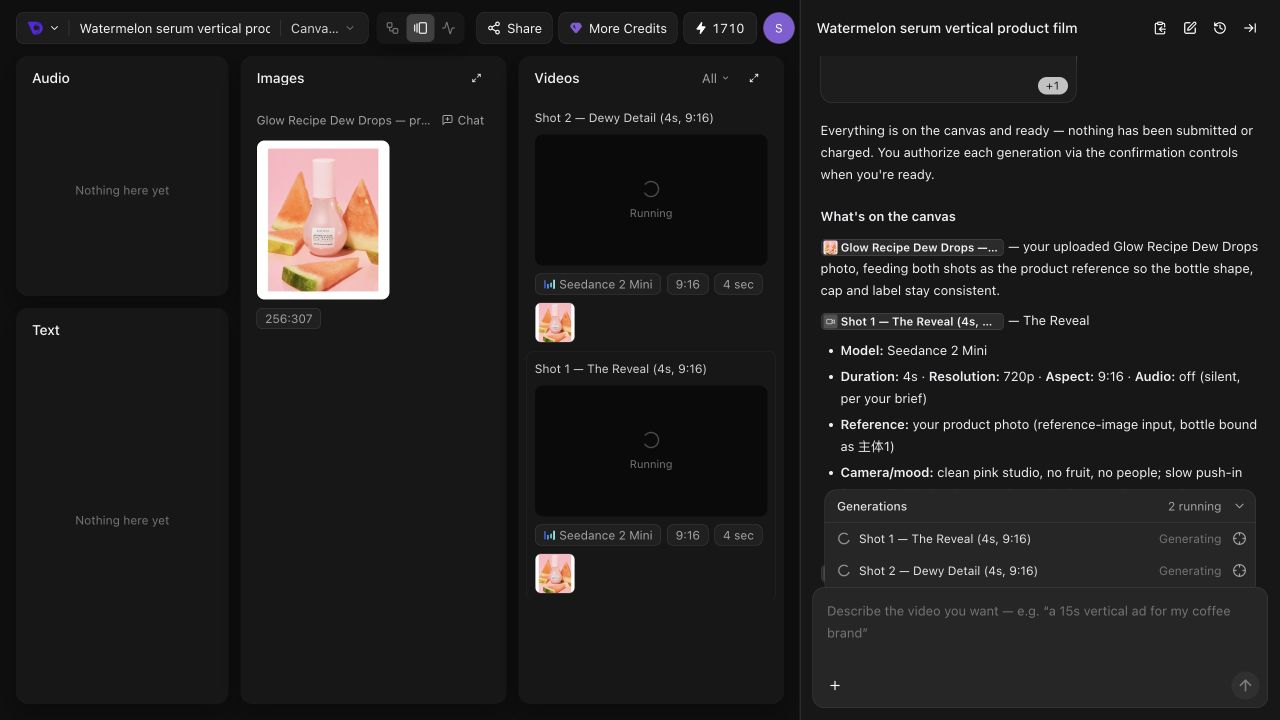
On a reference image card, select Chat to add that node's reference to the message draft. Write your instruction beside it, then send. You can also type @ in chat to select a node.
For example, after selecting the product reference, write:
Use this image for the bottle shape and label.
Check that both planned shots use this product reference.
Show me the setup before generating anything.
See Add References and Avatars for attachments and node mentions, or continue to Refine Your Results when you are ready to revise a shot.
Add References and Avatars
Give Veo3 AI Agent clear reference material, explain what each file controls, and browse avatars before planning a generation.
Refine and Reuse Your Results
Give precise feedback, create a separate generated version, and distinguish image annotations from AI changes and video composition.