Refine and Reuse Your Results
Give precise feedback, create a separate generated version, and distinguish image annotations from AI changes and video composition.
Review a result before changing it. Identify the one detail that matters most, then choose whether to ask Agent for a change, edit a generation setup yourself, or assemble existing clips.
Give feedback on a specific result
Type @ in chat and select the image or shot from Nodes. You can also select Chat on an asset card to bring that node into the message.
Write the change alongside what should stay:
Make the background a soft warm beige.
Use this image as the reference for the cup's shape, material,
and camera angle. Keep those details unchanged.
Create a separate image version so I can compare it with the original.
Show the new settings and cost before generating.
For a video, describe the subject, action, camera movement, or timing you want to change. If only Shot 2 needs attention, identify Shot 2 and tell Agent to keep Shot 1.
References help preserve appearance; they do not guarantee that every detail will match. Review the next result against the original.
Make a variant with the node controls
You can adjust a completed node's generation setup directly:
- Select the result on the Canvas or open it from Assets.
- Edit its prompt, Model, or Generation settings.
- Review the displayed cost and the updated request.
- Select Save as variant to create and generate the new version.
On an image or video generation node, Save as variant starts a new generation and uses the displayed credits. It is not just a draft save, and a separate confirmation dialog may not appear. The original result remains available for comparison.
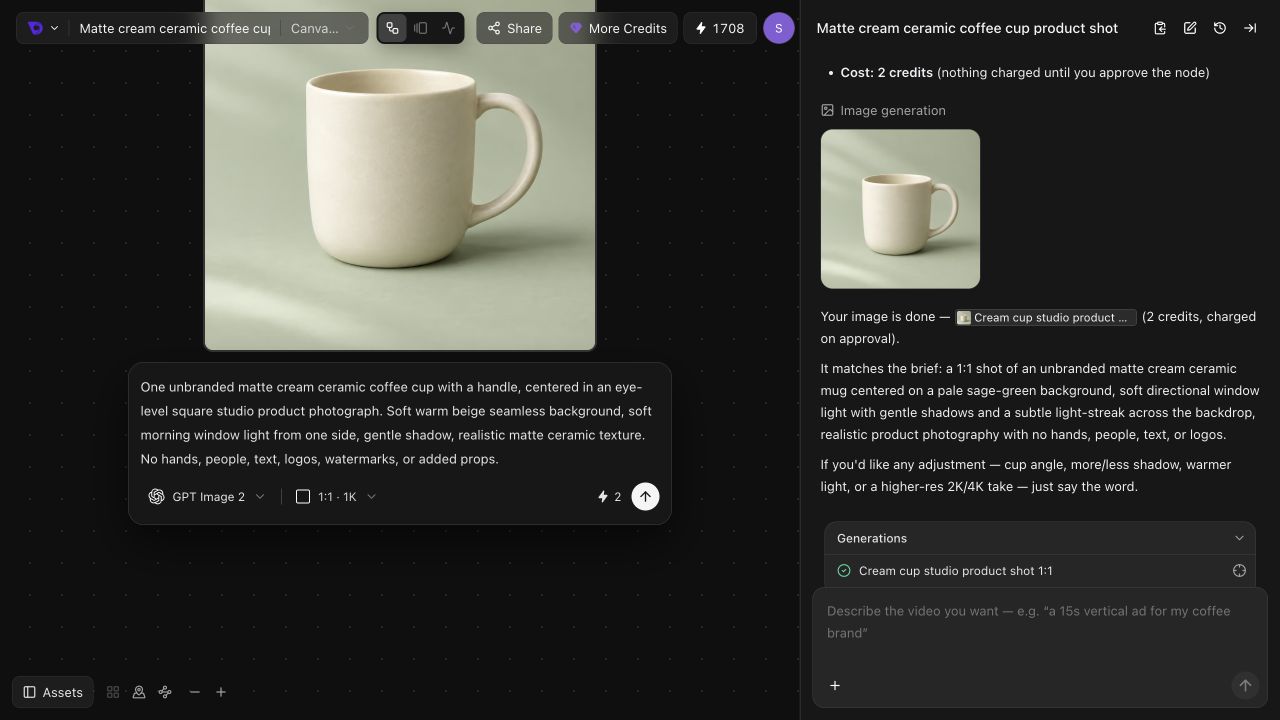
In the cup example, the first image used a sage-green background. Changing the prompt to request warm beige produced a separate V2 image.
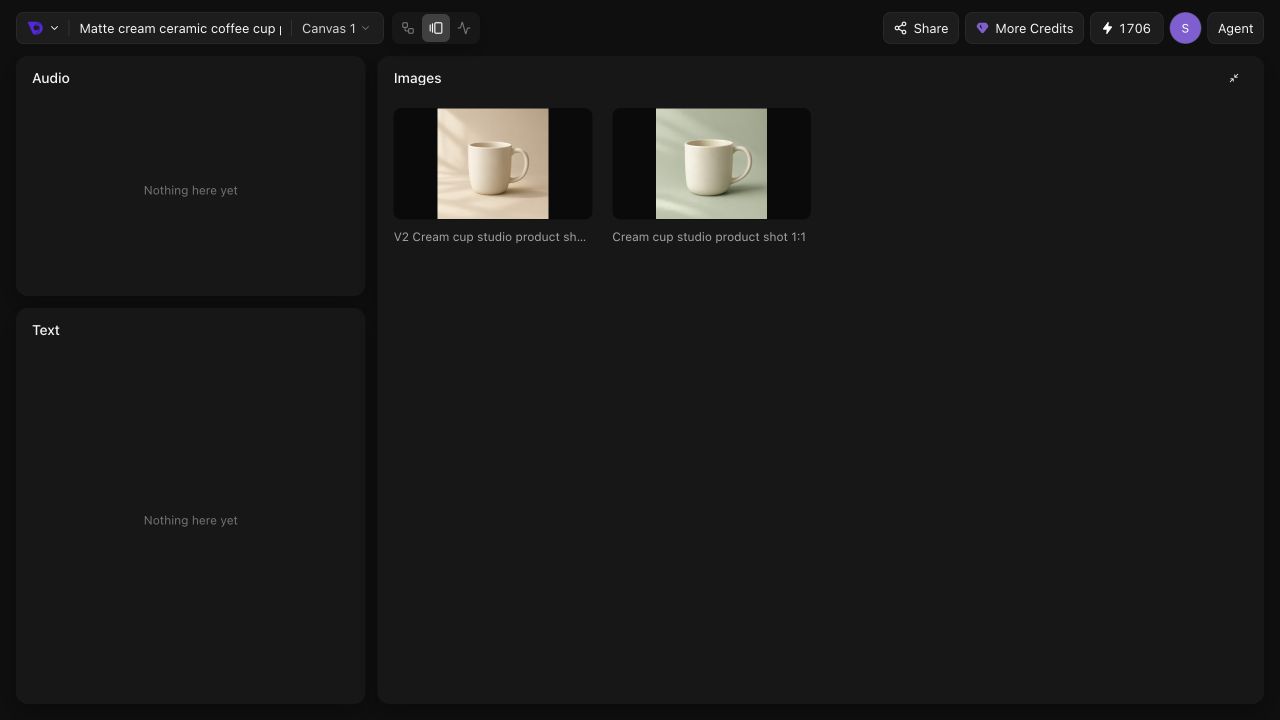
A text-only variant is another generation from the revised prompt. If the exact subject must be carried forward, ask Agent to use the original image as a reference instead of relying on the same description alone.
If you changed the direction using node controls, tell Agent what you changed before asking it to review the new result.
Use Edit for visual annotations
On an image, Edit opens visual tools such as Rectangle, Circle, Arrow, Pen, and Label, with undo and redo controls. These let you mark areas for discussion. Use Save when you want to keep an edited copy.
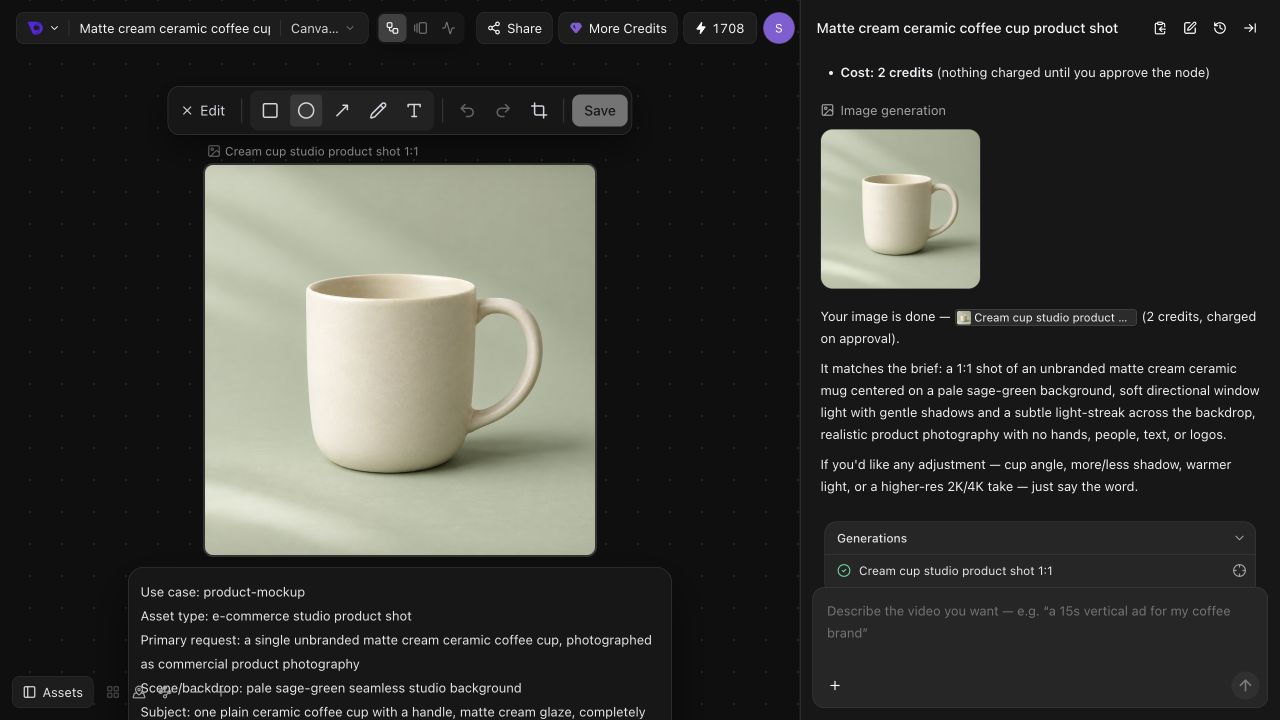
To have AI redraw an object or replace a background, describe that change to Agent or prepare a new generation. Drawing an annotation does not itself perform an AI edit.
Refine a video assembled from existing clips
If the individual shots are usable, describe changes to their order or timing in chat. For example:
Use the existing completed clips.
Place Shot 1 before Shot 2, trim each to 4 seconds,
and make a hard cut between them.
Export an 8-second vertical video with muted audio.
Keep both source clips unchanged. Do not generate new media.
Agent can prepare a Smart Edit composition node using the existing clips. Review and run that node, then play the rendered result. For the full sequence, follow Create a Product Video.
Composition and new media generation are separate operations. Arranging existing clips can use the free composition workflow; replacing a shot with a newly generated clip incurs its own generation cost. See Credits and Subscriptions.
Decide whether the revision helped
Compare the same part of each result: the cup handle, the label, the opening frame, or the final second of a shot. Keep the version that best matches your brief.
If a task fails, read its visible error and use Agent Troubleshooting before submitting the same request again.
Work in Canvas
Find connected shots, inspect generation settings, browse project assets, and keep your Agent conversation focused on the right node.
Create a Product Video
Turn a product reference into two short video shots, review their generation settings and results, then assemble a finished video with Smart Edit.