Meet Veo3 AI Agent
Start an Agent project from the homepage, use a sample brief, and understand how chat and Canvas work together.
Use Veo3 AI Agent to plan a creative project, generate images and video shots, refine individual results, and assemble existing clips into a finished video. Start with what you want to make, what it should look like, and which details matter.
For a first project, keep the brief small: one subject, one visual style, and a short sequence. This makes the plan easier to review and the result easier to judge.
| What you want to do | Start with |
|---|---|
| Make an image from an idea | Create Your First Agent Project |
| Use a product photo or character reference | Add References and Avatars |
| Change one result and compare versions | Refine and Reuse Your Results |
| Make several shots and assemble a film | Create a Product Video |
Choose your starting point
Open the Veo3 AI homepage. There are three ways to begin an Agent project:
| Start here | What to do |
|---|---|
| Veo3 AI Agent prompt box | Describe your idea, add references if needed, and send the brief. |
| New Canvas | Open a blank project and begin the conversation there. |
| An example below the prompt box | Load a starting brief, inspect any attached reference, and edit the draft before sending. |
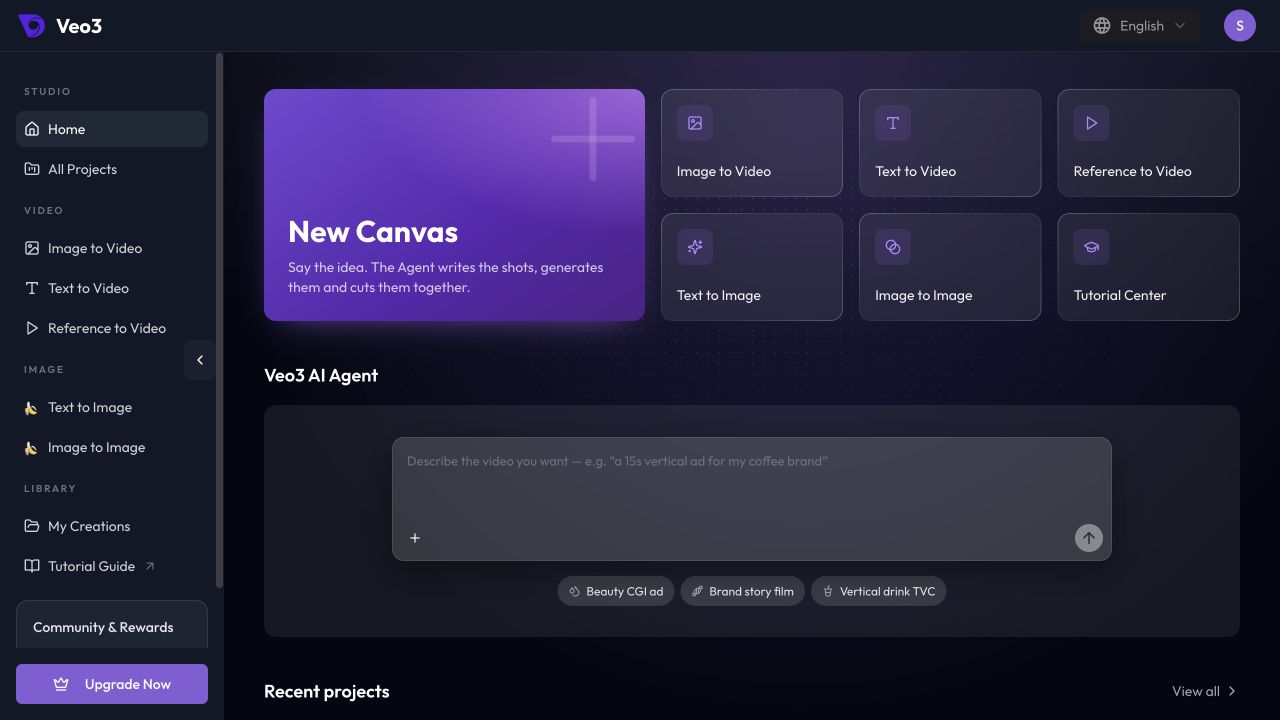
The homepage also has five direct generation tools. Use the Quick Start to choose one when you already know the exact generation task you want to run.
Try an editable example
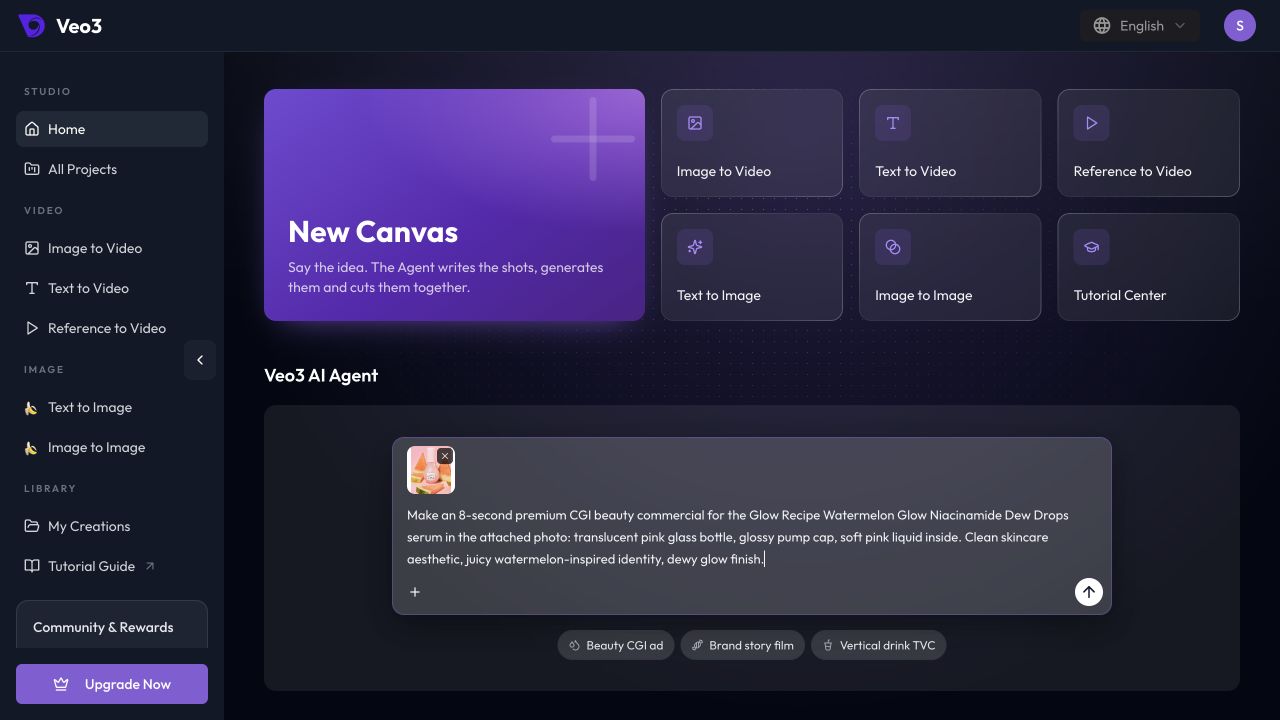
Select Beauty CGI ad below the Agent prompt box. It fills in a brief and attaches a sample product image. Read both before sending: the image and the written request should describe the same product.
You can change the setting, visual style, output format, and next action. If you use your own product, replace the sample reference and revise the description to match.
Work between chat and Canvas
After you send a homepage brief, the project opens with a Canvas and an Agent conversation.
- Chat holds your brief, the Agent's response, and your follow-up requests.
- Canvas is the visual workspace for the project's workflow and assets.
- Chat history lets you find conversations within the project.
- Recent projects on the homepage lets you return to a project later.
Give feedback in the conversation that contains the work you want to change. Refer to the subject or shot clearly, and say which details should stay the same.
Review the plan before continuing
If you want to approve the direction first, finish your brief with:
First propose the shots and explain the workflow.
Do not generate assets yet.
Read the proposed subjects, actions, setting, and timing. Ask for changes while the idea is still a plan.
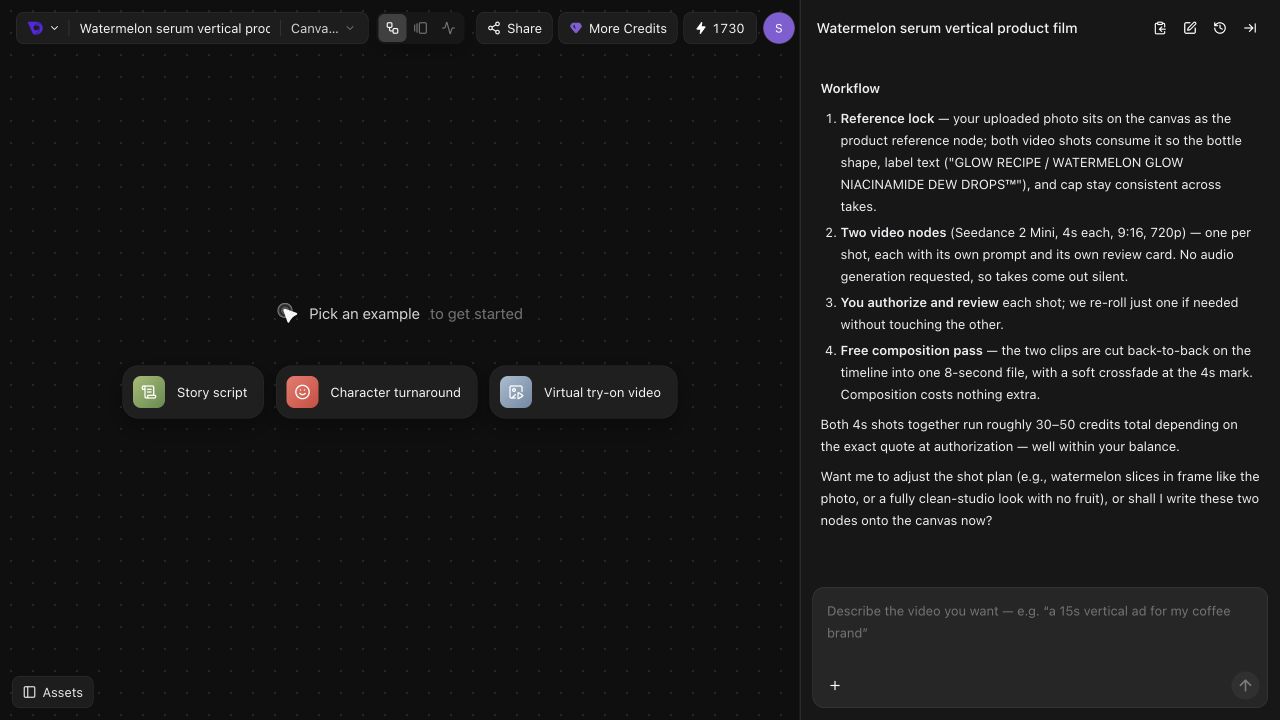
A shot described in chat is a proposal. Check the project's actual assets and generation status before treating it as a completed result. For generation charges and confirmation rules, see Credits and Subscriptions.
Next, use Write a Clear Creative Brief to turn your idea into a request the Agent can act on.